
Reptile Profiles and Husbandry History
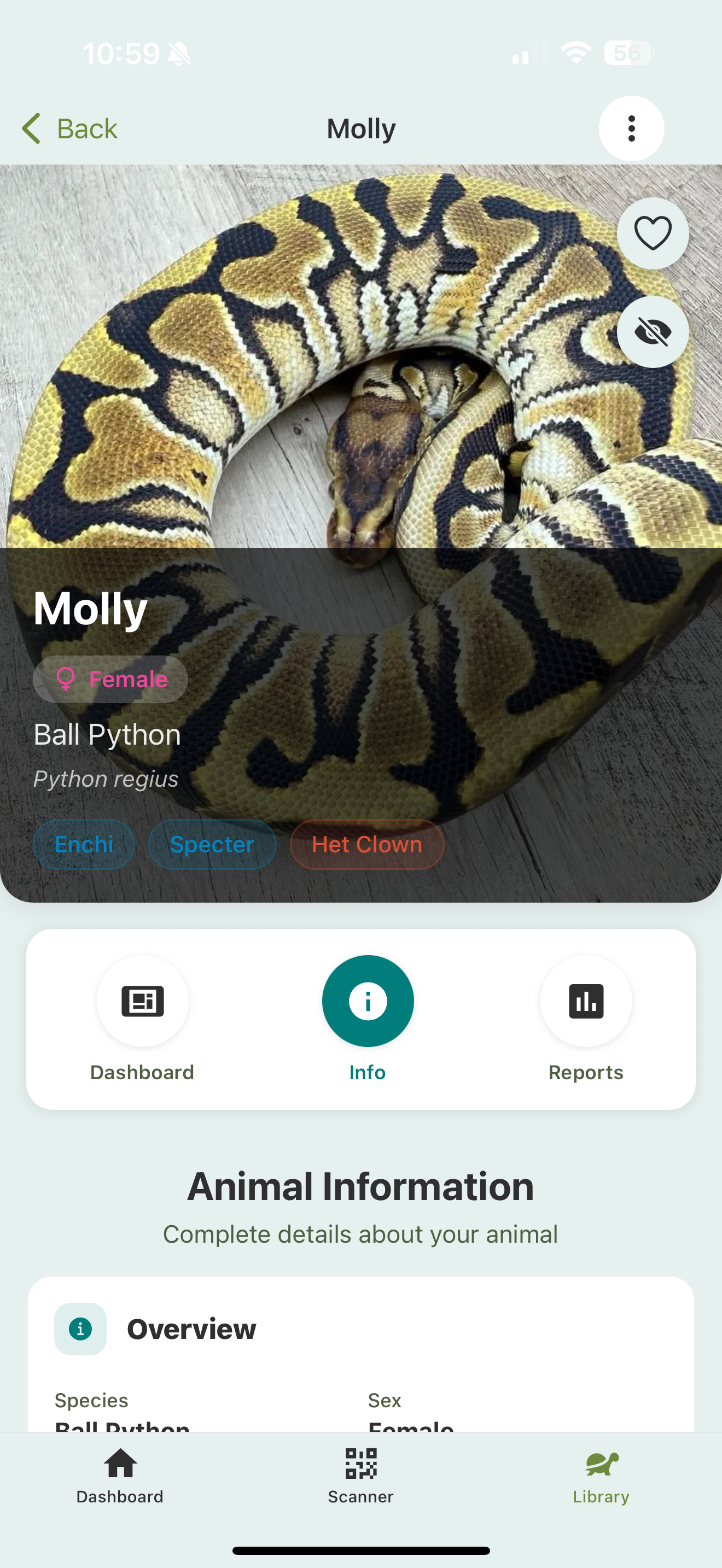
Every animal in your Library has its own profile: the full picture of that animal. The header shows its photo, name, sex, species, and traits, with Dashboard, Info, and Reports tabs below.
What’s on a profile
- Photo gallery — the animal’s photos, swipeable, with the first as the profile image.
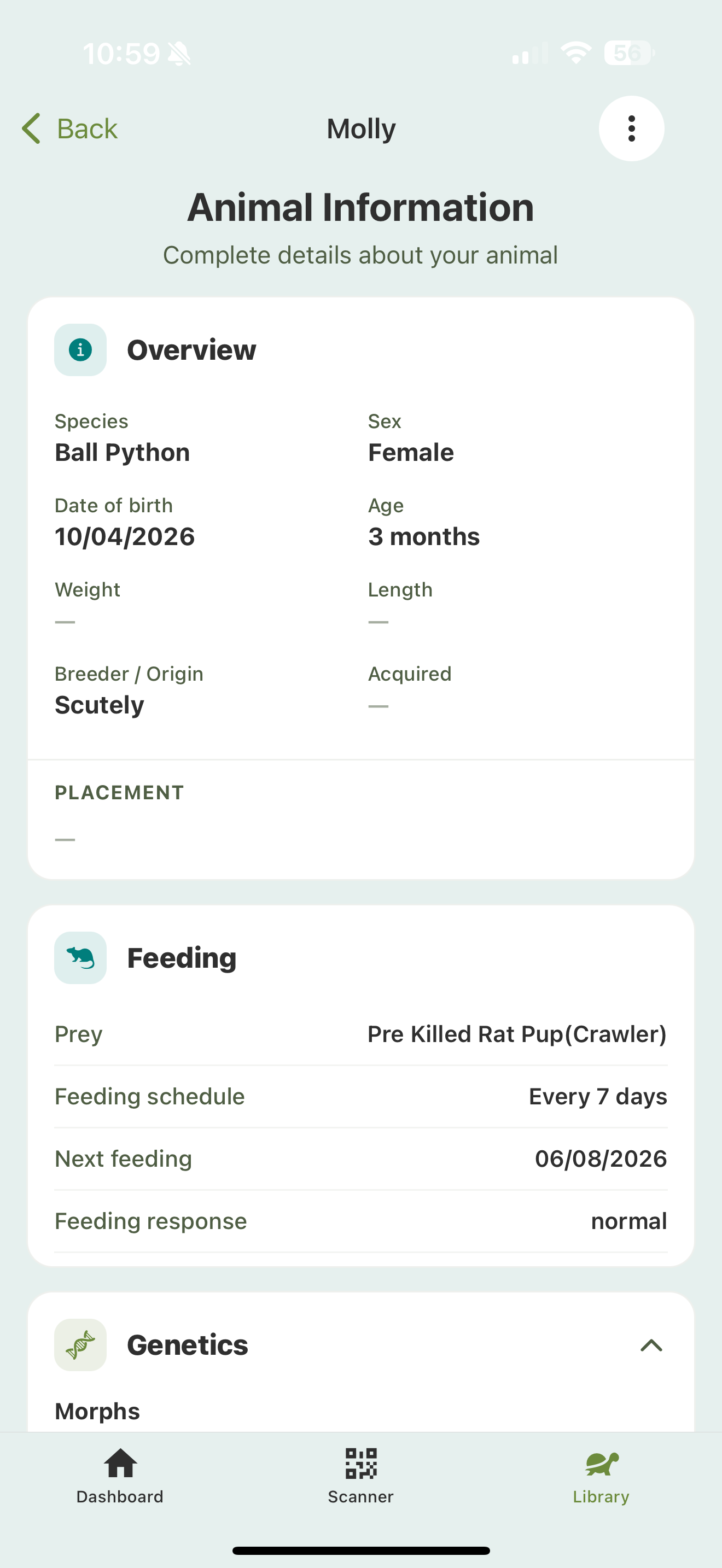
- Basics — name/ID, sex, species and scientific name, birth date, origin, and more.
- Traits — color-coded chips for the animal’s morphs and traits.
- Status badges — the header flags what matters right now: for sale, public, in brumation, feeding on hold, under quarantine, or deceased.
- Care dashboard — at-a-glance stats like when it last ate, shed, and was cleaned.
- History and reports — the full timeline of logged events, plus charts and summaries.
- Lineage — sire and dam, and the family tree beyond them.
Getting around a profile
A profile has three tabs:
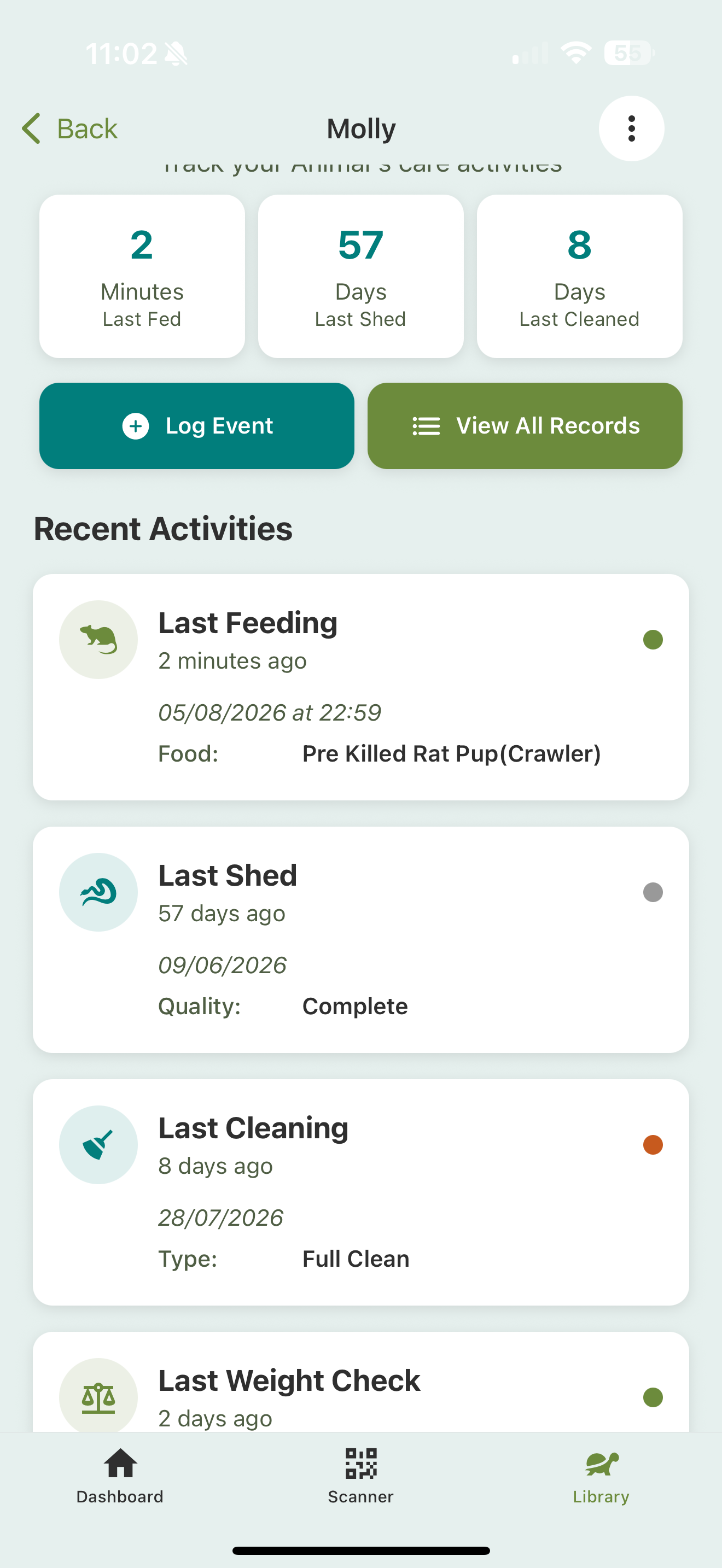
- Dashboard — recent care activity, quick actions like Log Event and View All Records, care stats (last fed, shed, cleaned), and cards for anything active: an ongoing treatment, suspended feeding, quarantine, or a gestation in progress.
- Info — all the animal’s details, grouped into sections (basics, physical stats, traits, breeding history, feeding, environment, behavior), editable any time.
- Reports — trends by week, month, or year: feeding counts and success rate, plus weight and length growth charts.
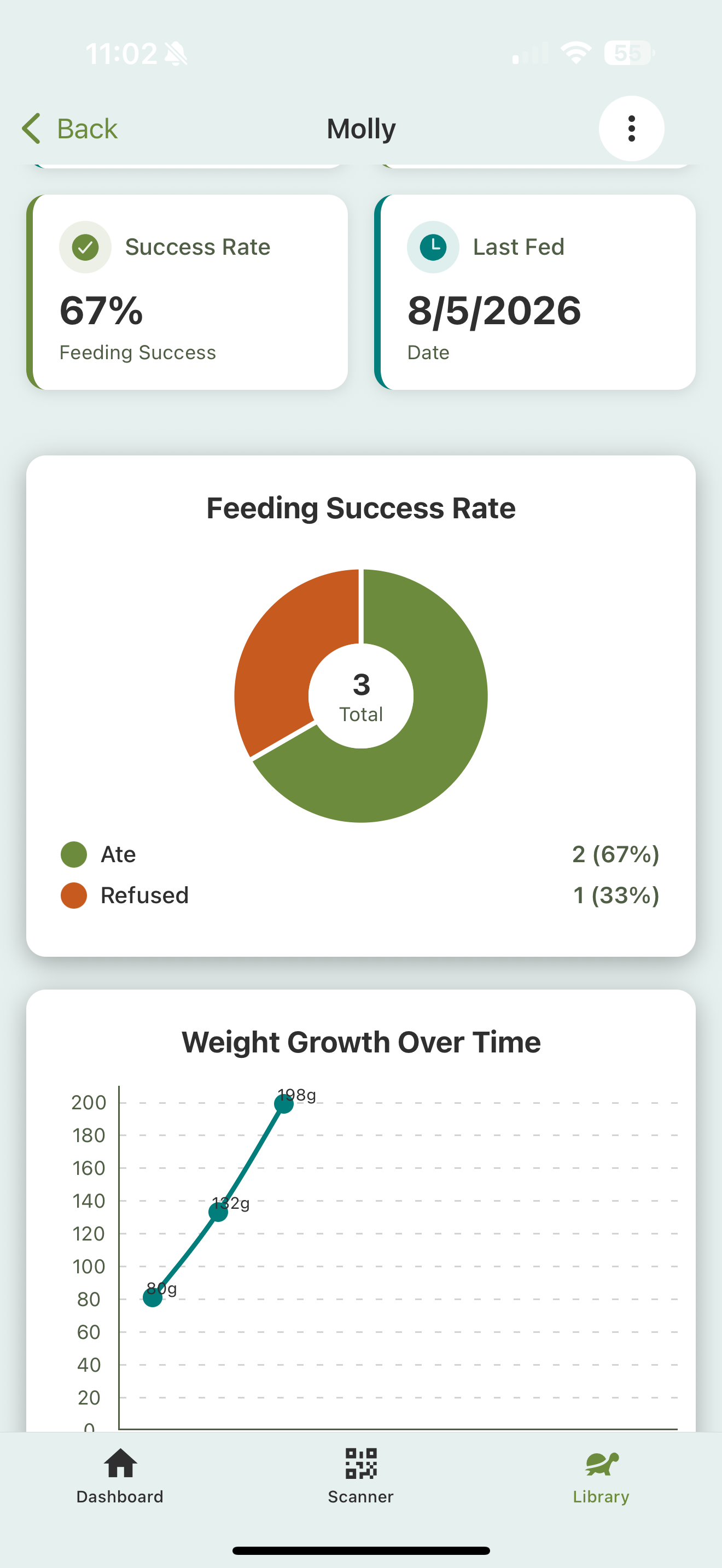
The Reports tab turns logged events into trends — a feeding success donut (ate vs. refused) and growth charts for weight and length, so you can see how an animal is doing over time.
Family & lineage
From the Info tab, Family & Lineage shows the animal’s parents, siblings, and full family tree. On paid plans you can trace up to 6 generations and print a pedigree chart, useful paperwork to hand a buyer along with their new animal.
Common actions
The options menu on a profile covers the rest:
- Log an event: see Log your first event.
- Edit details or traits: everything on the profile can be updated later.
- Duplicate the animal: a head start when adding siblings with near-identical details.
- Generate an ID card: see ID cards & enclosure QR codes, or show cards & selling for buyer-facing cards.
- Make it public or set a price: see Public animal pages.
- Transfer it to a new owner: see Ownership transfers.
- Export the animal or its event history as CSV: see Exporting your data.
Privacy
You control exactly what’s visible if you make an animal public, either per animal or from your account defaults. Medical records are never shown publicly. See Public animal pages.