
Reptile Care Groups: Organize by Rack, Room, or Stack
Care groups let you organize your animals the way you actually keep them, so you can look after a whole rack at once instead of one animal at a time. A group can be a plain group, a rack, or a cage stack.
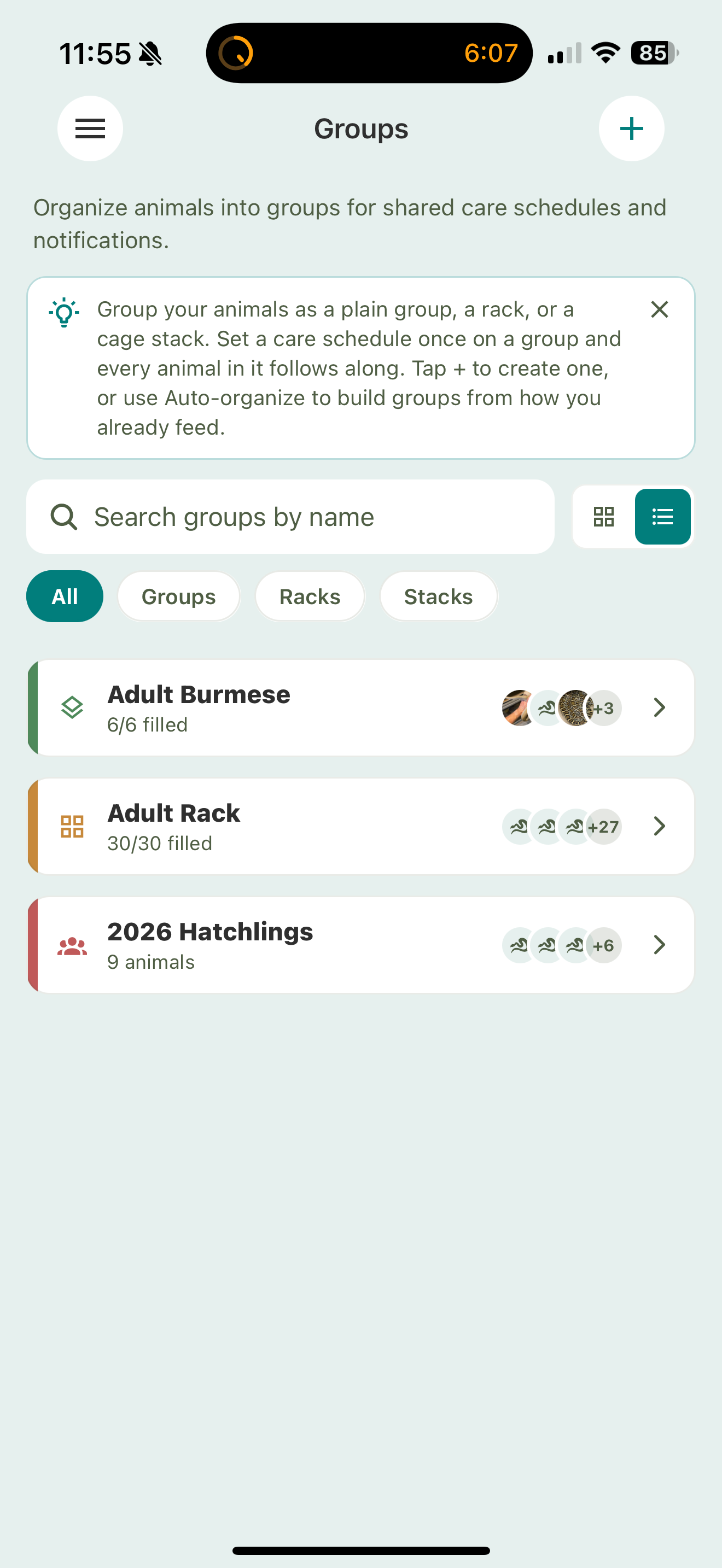
Creating a group
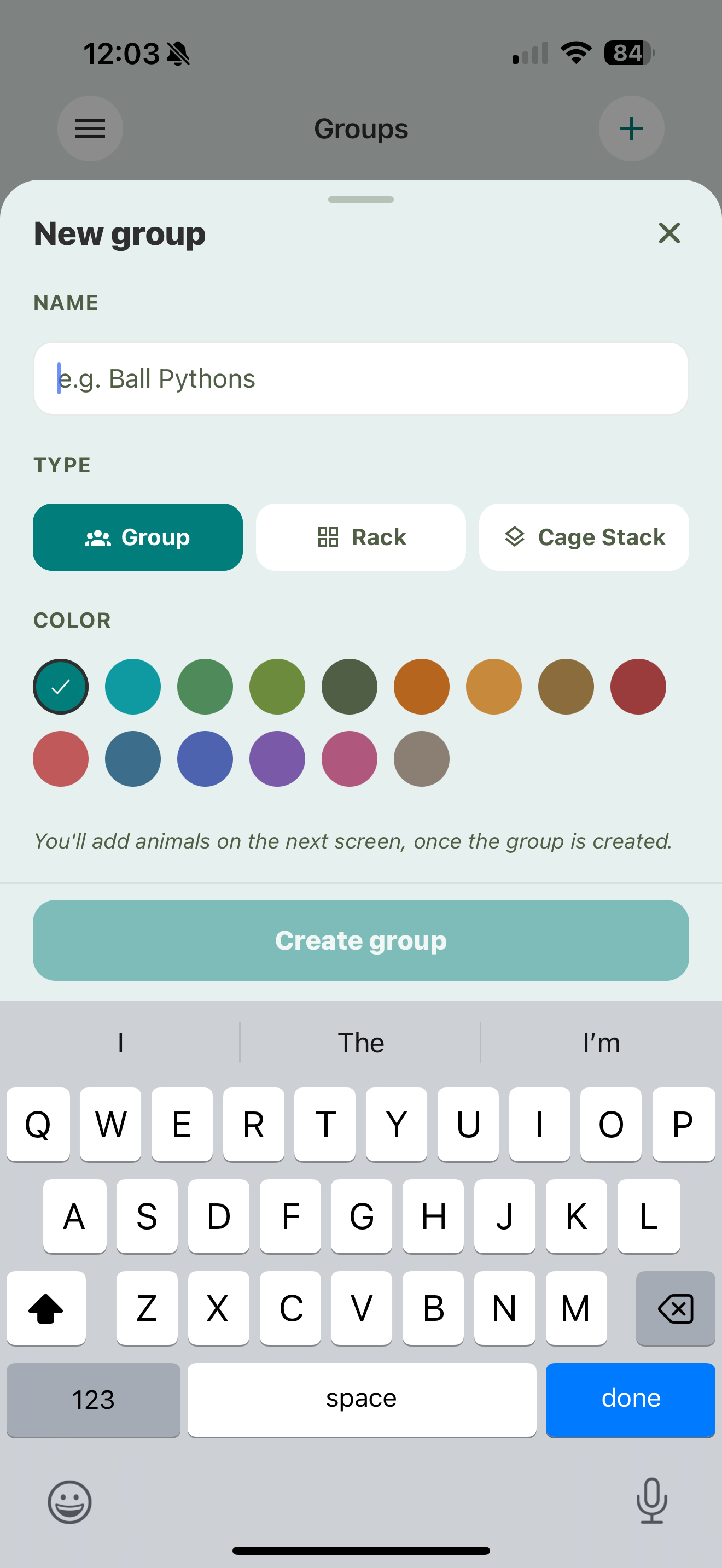
- Open Care Groups from the menu.
- Tap New group.
- Give it a name, pick a color, and choose the type:
- Group — a simple collection of animals, no slots.
- Rack — numbered slots laid out as a grid of columns × rows (or a flat total). Slots are labelled A1, A2, B1, and so on.
- Cage stack — a set of numbered slots for a stack of enclosures.
- Tap Create group.
You’re taken straight into the new group, with the Add animals picker open so you can fill it right away.
Adding animals
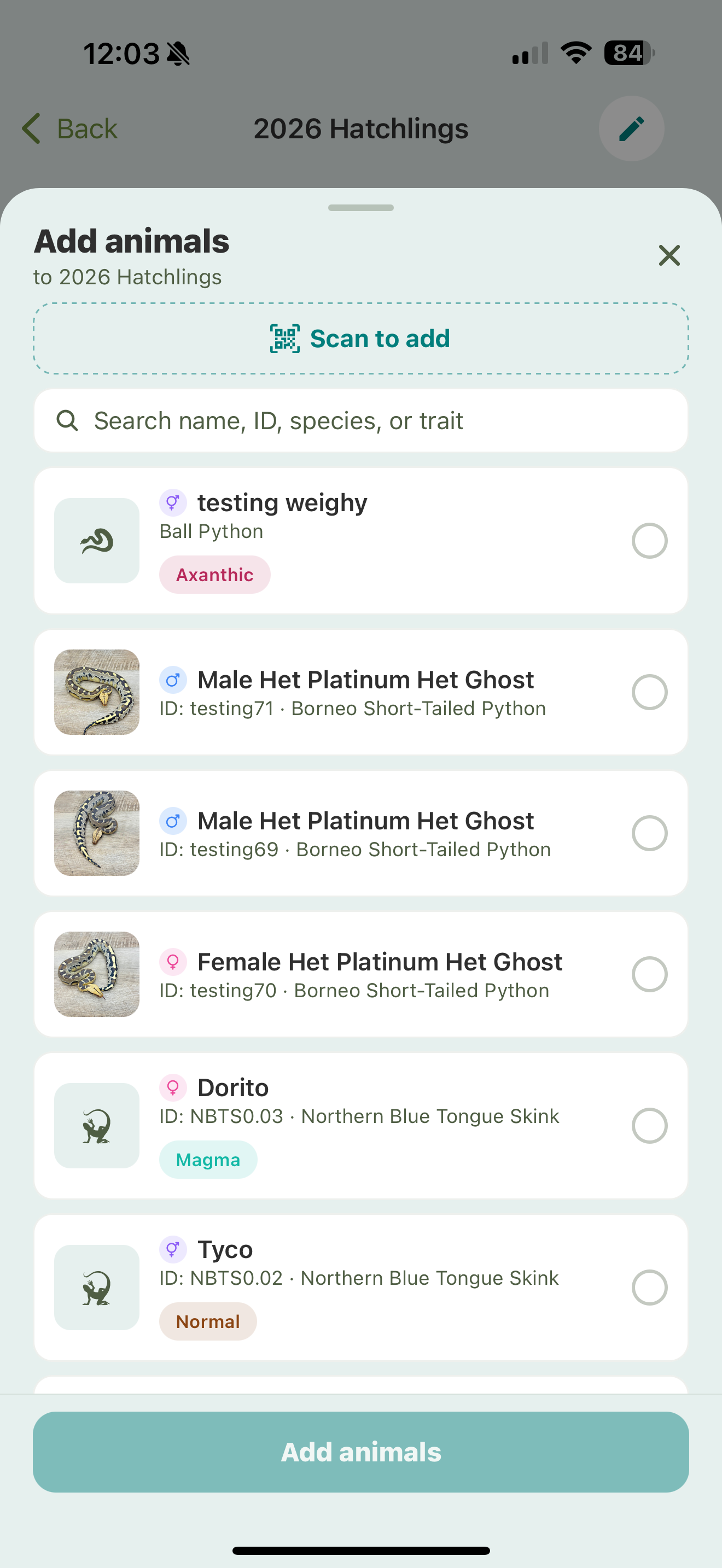
From a group, tap Add animals to pick from your collection. You can:
- Search by name, ID, species, or trait.
- Select several at once, then tap Add animals.
- Scan to add — scan enclosure QR codes to select animals hands-free; keep scanning to add several in a row, then add them all at once. See QR scanner & multi-scan.
- On a rack or cage stack, give each animal a slot as you add it (or let Scutely place them for you).
If a rack is full, Scutely adds what fits into the free slots and leaves the rest unplaced — you can drop them into slots later.
Inside a group
Open a group to see everything in it:
- Every animal with its photo, sex, and traits.
- For a rack or stack, a visual slot map — drag an animal from one slot to another to rearrange the rack the way it actually sits.
- Any care schedules set on the group.
- A Husbandry view with each animal’s latest temperature reading.
An animal’s slot also shows on its own profile — tap it there to jump to the rack map with that animal highlighted.
Scheduling care for a group
The point of a group is to care for everything in it together. Set a care schedule once on the group and every animal in it follows along, so you’re not repeating yourself for a whole rack. See Scheduling & the To-Do area.
Editing & removing
- Edit a group to change its name, color, or rack size.
- Remove an animal from a group without deleting the animal.
- Deleting a group leaves its animals untouched — it only removes the grouping.