
Print Reptile QR Labels on a Thermal Printer (Beta)
Scutely can print to wireless thermal label printers. They suit hatchling labels and expo tables, where you want small black-and-white labels fast.
Compatible printers
Thermal printing works with wireless label printers that support AirPrint or Mopria, including:
- Rollo Wireless
- Zebra ZSB and other modern Wi-Fi Zebra models
- Brother wireless label printers
Older, ZPL-only industrial printers and USB-only printers (like most DYMO models) aren’t supported, because they don’t appear in the system print dialog.
Thermal templates
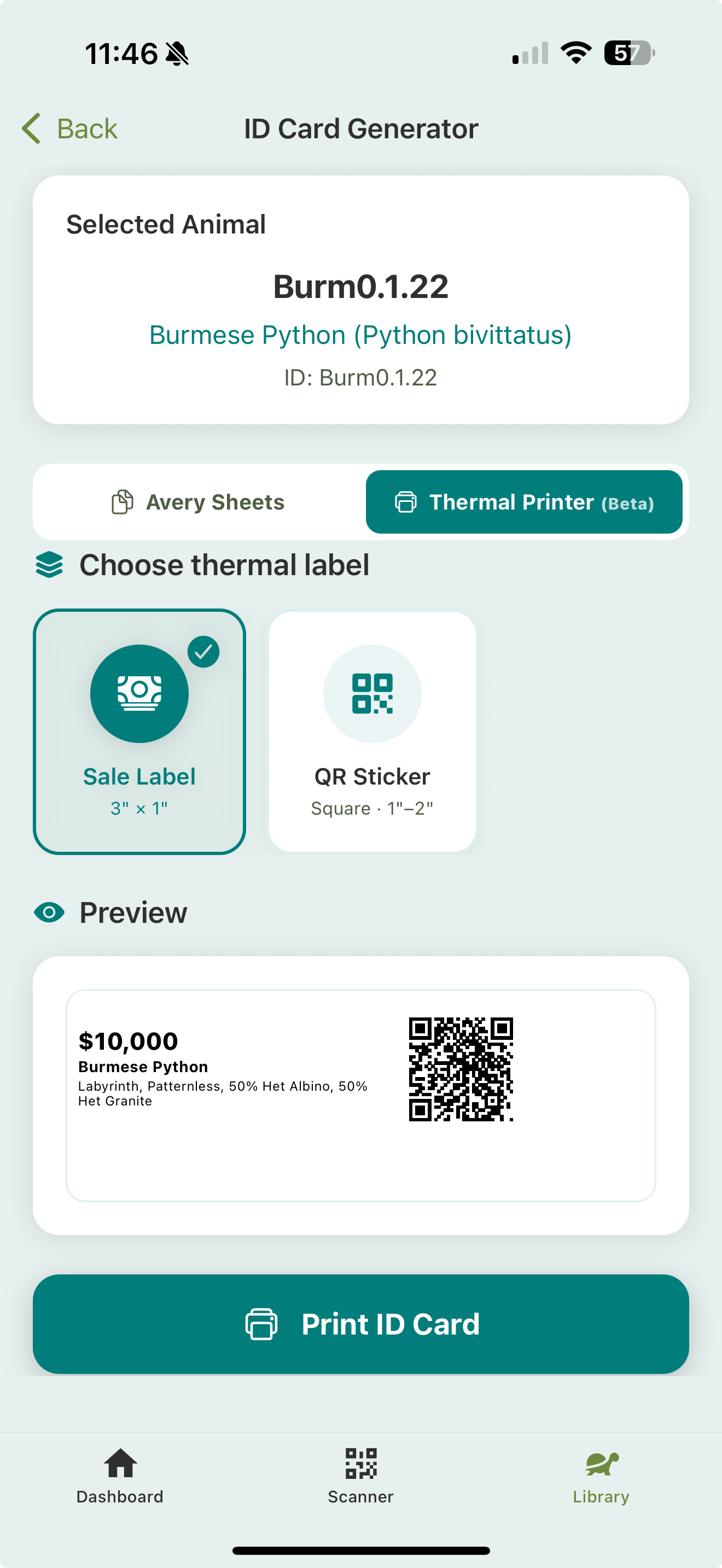
From the ID Card generator’s Thermal Printer tab:
- Thermal Label — a 3” × 1” label with name/ID, species, sex, traits, and a QR code.
- Sale Label — a 3” × 1” label with the price, species, and traits, plus a QR code (in Show & Store mode).
- QR Sticker — a square QR sticker in 1”, 1.5”, or 2”, with an optional ID caption.
Printing
- Open the ID Card generator (single animal or a multi-selection).
- Switch to the Thermal Printer tab.
- Pick a template (and size, for the QR sticker).
- Print, and choose your thermal printer in the dialog.
Labels print one at a time down the roll, so you can card a whole batch in one go.