
How to Log Reptile Care Events
Events are how Scutely tracks care over time. Every feeding, weight, shed, and cleaning you log builds an animal’s history and feeds its dashboard and reports.
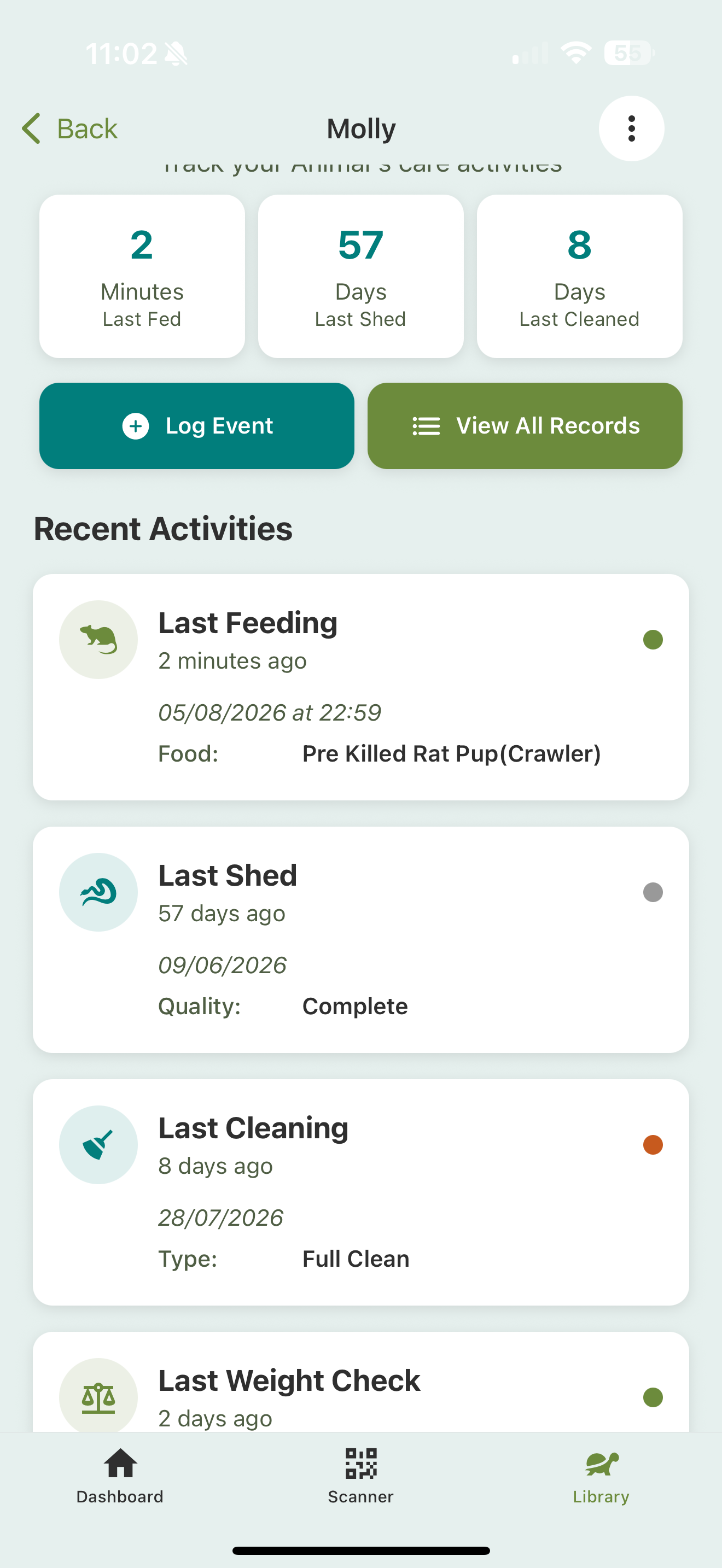
Logging an event
- Open an animal, or scan its QR code.
- Tap Log Event.
- Pick the event type.
- Fill in the details and Save.
You can backdate any event: change the date on the form when you’re catching up on records.
See Quick start: your first event for a full walkthrough.
Event types
- Feeding — prey item, live or frozen-thawed, quantity, prey weight, whether it ate or refused, and any supplements. When an animal should be fed next is handled by its care schedule, not the feeding form.
- Weight and Length — tracked over time with growth charts.
- Shed — with quality (complete, partial, difficult, stuck), shown as Molt for inverts. Females get a Pre-Lay option that ties into breeding.
- Cleaning — spot clean, full clean, or substrate change.
- Water — changes, misting, and baths, with room for pH, temperature, and quality readings on aquatic setups.
- Temperature — record the hot side, cool side, and ambient together in one entry, in °F or °C.
- Medical — health events and treatments. See Medical events & treatments.
- Custom — event types you define yourself. See Custom event types.
On a female, the Log Event list also includes breeding events (ovulation, gravid, laid clutch, gave birth). See Breeding groups & events.
Pausing feeding
If an animal shouldn’t be fed for a while, whether for medical reasons or seasonal cooling, you can put its feeding on hold until a date you set. Scutely reminds you why when you try to log a feeding, and breeding events like brumation can set the hold for you.
Seeing an animal’s history
Everything you log appears on the animal’s profile:
- The dashboard shows the latest activity (last fed, last shed, last cleaned).
- History is the full timeline.
- Reports turn events into trends: feeding success, growth, and more.
Logging for several animals at once
On a feeding or cleaning day, you don’t have to open animals one by one:
- Multi-select in the Library and log the same event across the selection.
- Or use the scanner’s multi-scan mode to build the batch by scanning enclosures. See QR scanner & multi-scan.