
Organize Your Reptile Collection in the Animal Library
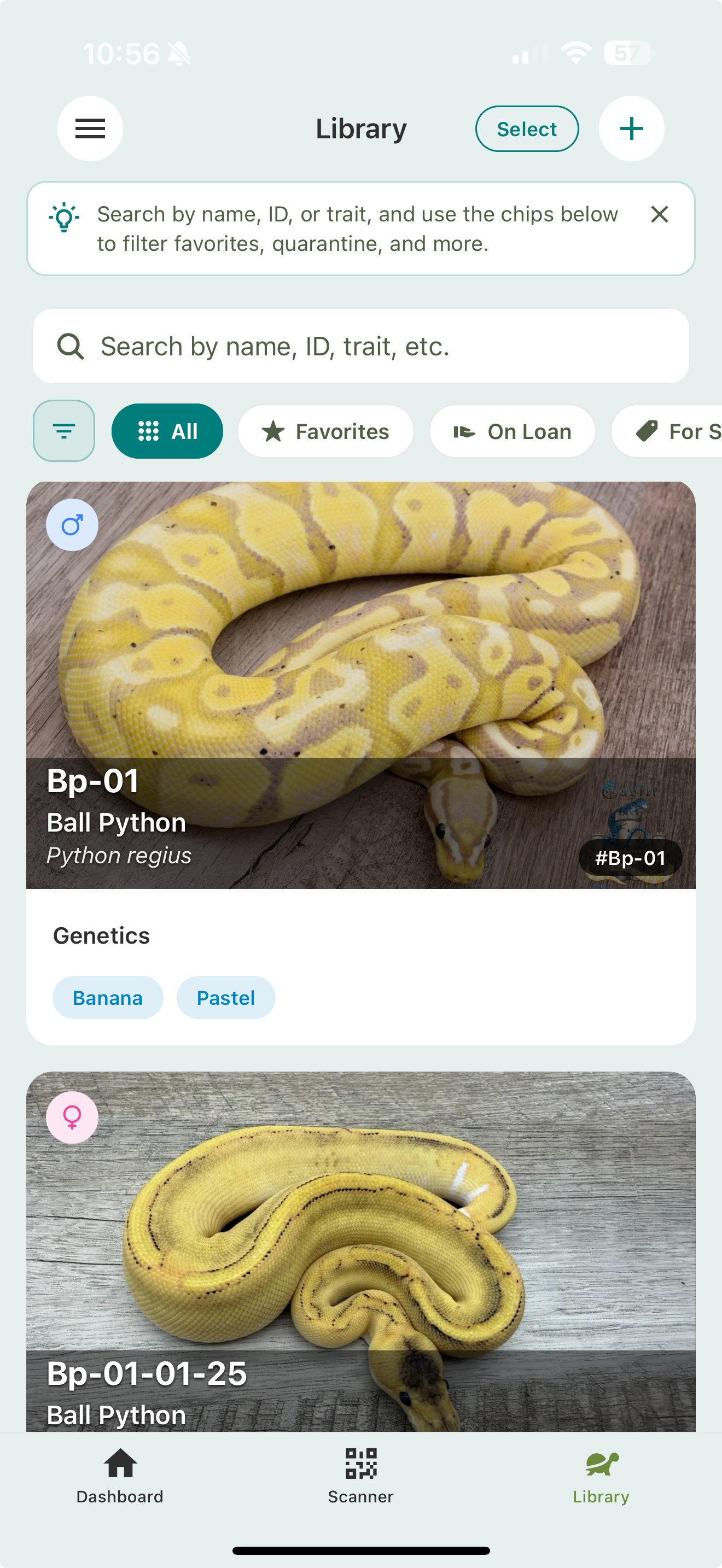
The Library shows your entire collection. Every animal you add appears here as a card with its photo, name, species, sex, and traits. Use the search bar and the filter chips below it to find what you’re after.
Finding animals
- Search by name, ID, species, or trait. Searching a trait like
super pastelorhet clownfinds every animal that has it. - Filter by species, traits, sex, favorites, quarantine status, and for-sale status. Deceased animals are hidden by default; there’s a filter to show them.
- Sort by ID, name, date added, date of birth, species, or sex.
- Grid or list — switch views with the toggle in the filter sheet. Grid fits more on screen; list shows more detail per animal.
- Favorites float your most-used animals to the top. See Quarantine & favorites.
Acting on animals
Tap an animal to open its profile. To add a new animal, use the + button — see Adding animals & Smart Import.
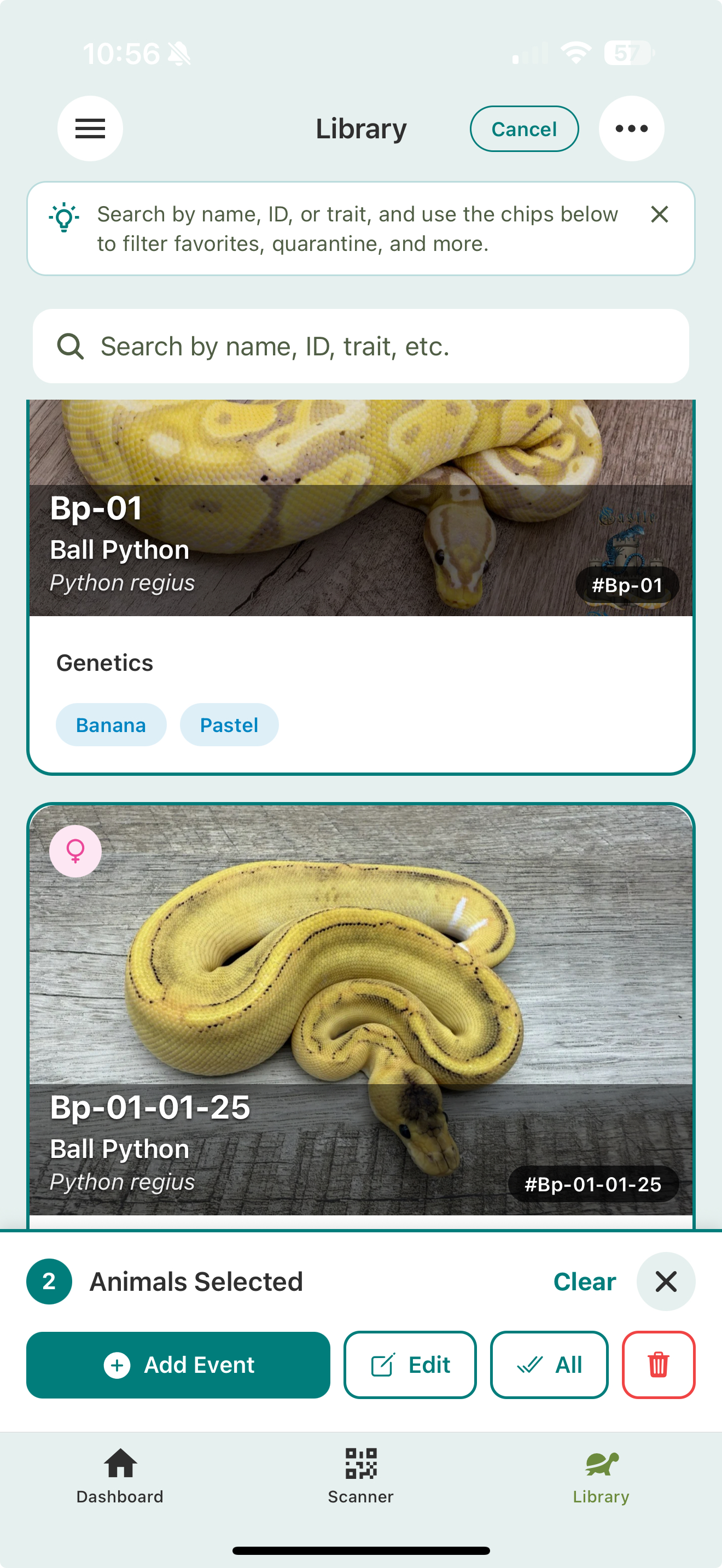
Tap Select to enter multi-select mode and act on several animals at once. A bar appears at the bottom with what you can do:
- Add Event — log the same event across the selection (a whole feeding day in one go).
- Edit — bulk-edit prey, feeder, schedule, or sequential IDs for everyone selected.
- All — select every animal at once (and Clear to deselect).
- The ⋯ menu adds Create ID cards (see ID cards & enclosure QR codes) and Export as CSV or MorphMarket format (see Exporting your data).
- Delete — remove several animals at once.
Where to go next
- Animal profiles — what’s on each animal’s page
- Adding animals & Smart Import — single and bulk
- Collection defaults — pre-fill common fields